|
|
||
|---|---|---|
| .github/workflows | ||
| assets | ||
| lib/Crypto | ||
| src | ||
| .gitignore | ||
| LICENSE | ||
| merge_firmware.py | ||
| partitions_8MB_ota.csv | ||
| platformio.ini | ||
| README.md | ||

Ratcom
Standalone Reticulum for the M5Stack Cardputer
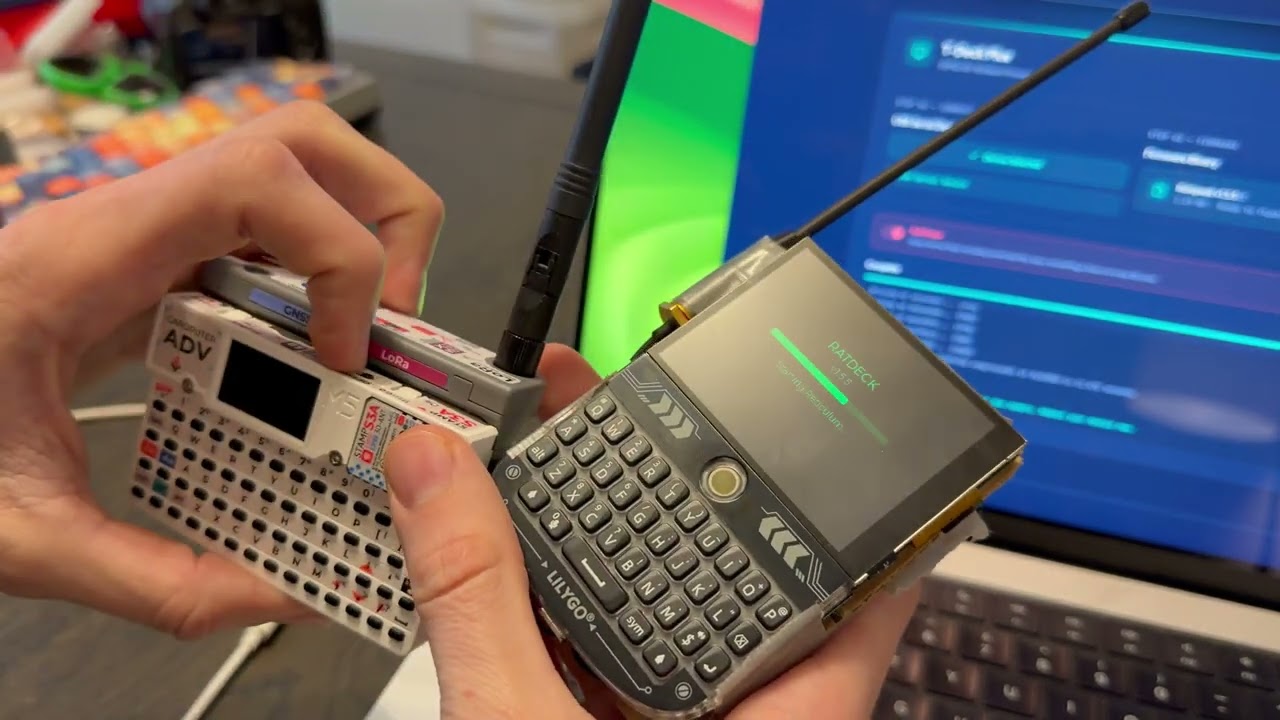
Ratcom turns an M5Stack Cardputer Adv into a full standalone Reticulum node. It's not just an RNode which requires another device — it's the complete setup.
End-to-end encrypted LXMF messaging over LoRa, TCP over WiFi for bridging to the wider Reticulum network, node discovery, identity management, GPS time sync, and more.
Installing
The easiest way is the web flasher — enable download mode (hold G0 while plugging it in), select the USB, click flash, done.
To build from source:
git clone https://github.com/ratspeak/ratcom
cd ratcom
pip install platformio
python3 -m platformio run -e ratcom_915 -t upload
Usage
On first boot, Ratcom asks you to pick a timezone and set a display name. Your LXMF address (what you share with contacts) is shown on the Home tab.
Tabs: Home, Msgs, Nodes, Settings — navigate with , and / keys.
Manually announce: Press Enter on the Home tab to broadcast your identity to the network.
Add/delete contacts/messages: Hold Enter on a conversation to add contact or delete history.
Sending a message: Find someone in the Nodes tab, press Enter, type your message, hit Enter to send. Messages are encrypted end-to-end with Ed25519 signatures.
Radio presets (Settings → Radio):
- Long Range — SF12, 62.5 kHz, 22 dBm. Longest distance, slow.
- Balanced — SF9, 125 kHz, 17 dBm. Medium distance, medium.
- Fast — SF7, 250 kHz, 14 dBm. Shortest distance, fast.
All radio parameters are individually tunable. Changes apply immediately, no reboot. Please operate in accordance with local laws, as you are solely responsible for knowing which regulations and requirements apply to your jurisdiction.
WiFi Bridging (Alpha)
Use STA mode to connect to existing WiFi and reach remote nodes like rns.ratspeak.org:4242.
To bridge LoRa with Reticulum on your computer:
- Set WiFi to AP mode in Settings → WiFi (creates
ratcom-XXXX, password:ratspeak) - Connect your computer to that network
- Add to your Reticulum config:
[[ratcom]]
  type = TCPClientInterface
  target_host = 192.168.4.1
  target_port = 4242
Note: WiFi bridging methods and interfaces will be revamped with Ratspeak's client release, therefore, it's unlikely AP mode works at all currently.
License
GPL-3.0